Using VAT in UEFN
Vertex Animation Toolkit is an Unreal Engine editor plugin, and UEFN does not load custom plugins. You can still use vertex animation textures in your Fortnite island: bake them in Unreal Engine 5, then copy the generated assets and the plugin's material functions into your UEFN project.
This page walks through the full process.
1. Set Max Texture Size to 4096
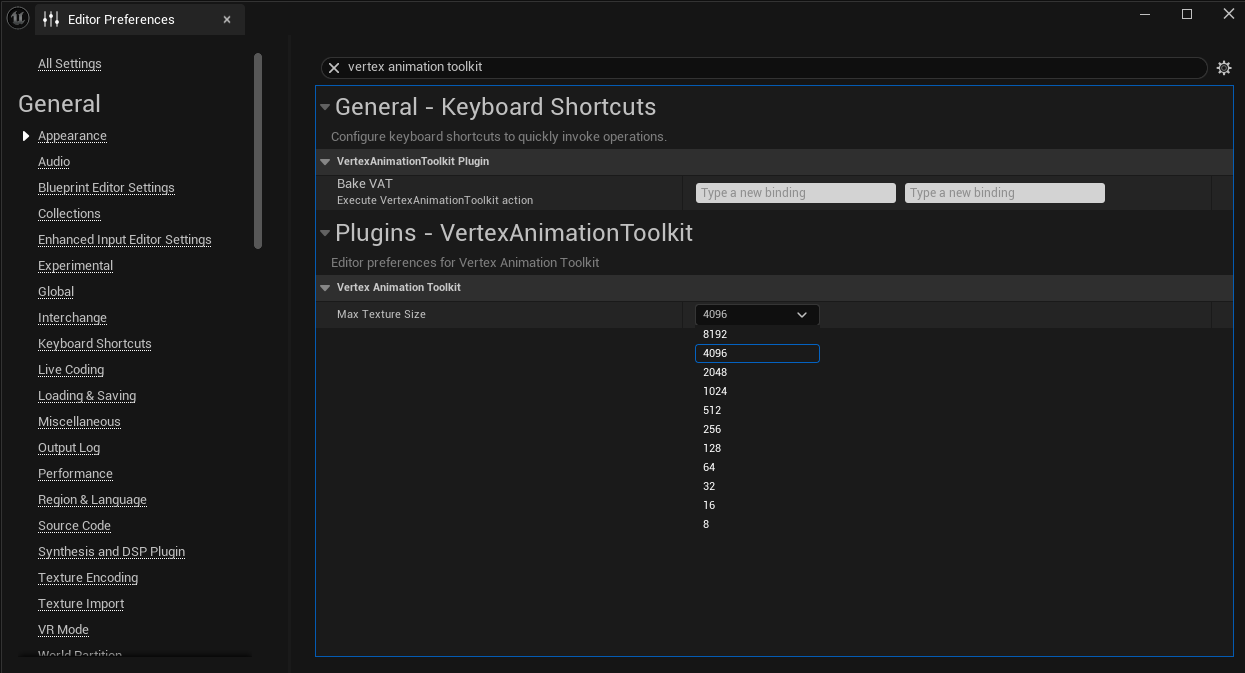
UEFN does not support the plugin's default texture size of 8192, so lower the limit before you bake.
-
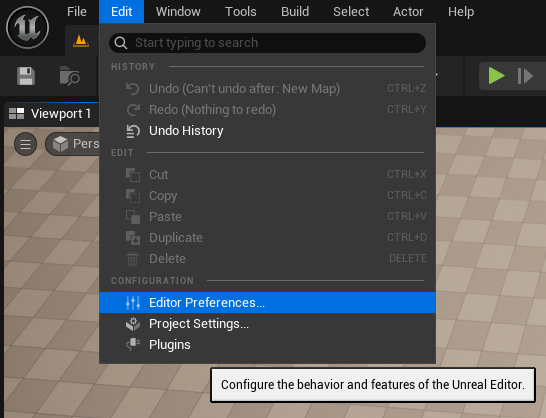
In Unreal Engine 5, open Edit → Editor Preferences.
-
Search for vertex animation toolkit, then set Max Texture Size to 4096.
TIP
Meshes with more than 4096 vertices or animations with more than 4096 frames are automatically split into multiple texture-array slices, so 4096 does not limit what you can bake. See Max Texture Size.
2. Copy the material functions to UEFN
The plugin's runtime material functions need to exist in your UEFN project. In the Content Browser, open Plugins → Vertex Animation Toolkit Content → Blueprints and copy these three material functions into your UEFN project:
- VATK_PlayAnimation
- VATK_MorphTargets
- VATK_GradientMap
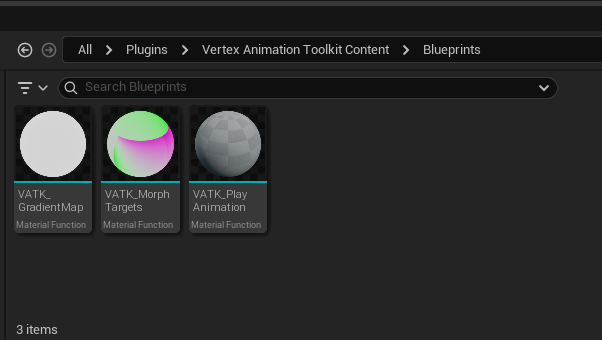
Select all three, right-click and choose Asset Actions → Migrate..., then pick the Content folder of your UEFN project as the destination.
TIP
Copy all three functions together. VATK_PlayAnimation calls VATK_MorphTargets, which in turn calls VATK_GradientMap. If any function call shows up as unset after copying, open the function and reassign it.
3. Bake the VAT in Unreal Engine 5
Bake the animation in Unreal Engine 5 as usual, see Generate Textures. Then copy the four generated assets to your UEFN project the same way as in step 2:
- the Static Mesh
- the Positions texture array
- the Normals texture array
- the Play Helper material function
4. Disable Lerp UVs on the static mesh
In UEFN, open the copied static mesh. Under Nanite Settings, uncheck Lerp UVs and click Apply Changes.
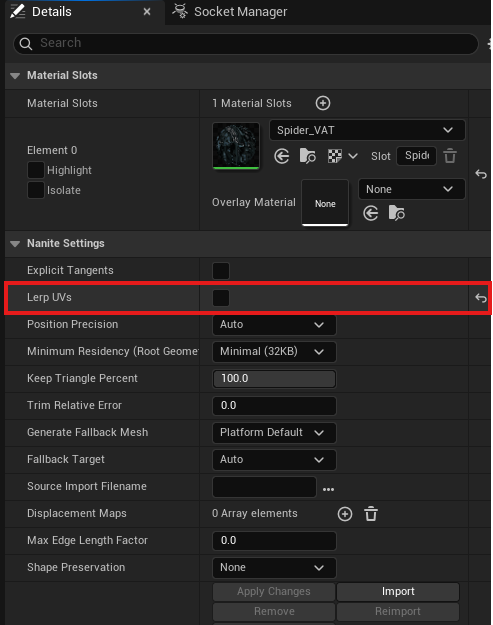
This step is required. The toolkit stores each vertex's texture location in UV channel 1. When Lerp UVs is enabled, Nanite interpolates these values while building the mesh, which breaks the animation lookup in the material.
5. Set up the material
Create the material in UEFN the same way as in Unreal Engine 5, see Material Setup. Use the material functions you copied in step 2 and the textures and Play Helper from step 3, and assign the material to the static mesh.
6. Use it in Scene Graph
The baked asset is a regular static mesh, so it can be placed like any other mesh. In Scene Graph, add a Mesh component to your entity and set its mesh to the baked static mesh. The animation plays entirely inside the material, so no additional runtime setup is needed.
TIP
The Runtime helpers (Vertex Animation Subsystem, ISM / HISM components and the Vertex Animation Instance component) are part of the plugin and are not available in UEFN. Use the static mesh directly instead.